Rowan agreed to lend Jesse $1,200 for a laptop, paid back in six monthly chunks. The app part took two minutes. The part that mattered happened before anyone touched a phone: agreeing the amount, the number of payments, the rhythm and what happens if one is late. This guide gives you a worksheet for that conversation, explains every field you’ll meet when you set up an installment plan in IOUEZ, and shows the one date detail most people miss.
Key takeaways
- Agree first, enter second. Fill in the worksheet together, then copy it into the app.
- Web app or Android, before you sign. Set up installments in either one; once both of you have signed, the terms and the schedule are locked.
- “Monthly” differs slightly. The web app keeps the same day of the month; Android spaces payments 30 days apart, so its dates drift.
- Interest is a flat percentage of the amount, spread evenly across the payments.
- Reminders follow each installment. Both of you get a nudge for the next unpaid one, like “installment 2 of 6”.
The fields, in plain English
When you set up an installment plan in IOUEZ, you’ll fill in a handful of fields. Most of them are part of the agreement itself; the schedule fields differ a little between the web app and the Android Add IOU screen. Here’s what each one does and how we’d fill it in.
- Debt type
- Someone owes me if you’re lending, I owe someone if you’re borrowing. It decides which side of the balance you sit on.
- Amount
- The money that changes hands, before interest. Use the exact figure: $1,200, not “about twelve hundred”.
- Currency
- The currency both of you will repay in. Pick it on purpose; it can’t be converted later.
- Interest rate
- Optional. A flat percentage of the amount, added once. 5% on $1,200 adds $60, whether you pay over six weeks or six months.
- Set up installments / Payment Installments
- What turns a single debt into a schedule. In the web app it’s a button on the agreement page; on Android it’s a switch on the Add IOU form. Without it, you have one balance with one due date.
- Number of payments
- How many payments, from 2 to 120 in the web app (Android calls it Number of installments). The total (amount plus any interest) is divided evenly, to the cent; any leftover cents land on one installment so the sum is exact.
- Installment Title
- Android only. A short name for the plan, like “Laptop loan”. Optional, but it makes lists easier to read.
- How often
- Weekly, every two weeks or monthly. Weekly and every two weeks are 7 and 14 days apart in both apps. Monthly keeps the same day of the month in the web app and is 30 days apart on Android.
- First payment
- Web app only: the date of the first installment. Android starts counting from the day you save.
- Due date
- The agreement’s overall due date. Once a shared agreement has installments, reminders follow each installment instead, but we still set it to the final installment so anyone can see when it should be fully paid.
- Agreement notes
- Your plain-English terms: the schedule, the late plan, how payments are made.
Both apps show you the result before you save. On Android, a live summary under the frequency buttons reads, for example, “Each installment: $210.00” and “6 payments of $210.00 (monthly)”. In the web app, a preview table lists every date and amount. Read it before you save. It’s the number your borrower will see every time.
The worksheet: agree it before you open the app
Copy this, fill in the brackets together (on paper, in a note, in a text thread), and keep it. It’s the plan you’ll type in, and the version you’ll both point to if memories differ.
Template: installment plan worksheet
INSTALLMENT PLAN WORKSHEET

Lender: [full name]
Borrower: [full name]
Date agreed: [Month DD, YYYY]

Amount lent: $[amount]
What it's for: [one line]
Currency: [USD]
Interest: [none / X% flat on the amount]
Total to repay: $[amount + interest]

Number of payments: [N]
Frequency: [weekly / every 2 weeks / monthly]
Each payment: $[total / N]
First payment due: [date]
Last payment due: [date]

How payments are sent: [bank transfer / Zelle / cash]
Who records each payment: [the borrower, same day]

If a payment will be late:
[Borrower tells lender before the due date;
we agree a new date together.]

Paying early or extra is: [welcome / fine,
it comes off the last payments]

Both agree: [initials] [initials]
Two lines on that worksheet do most of the work. “Who records each payment” stops the classic “I thought you’d log it”. And “If a payment will be late” turns a missed date into a scheduled conversation instead of an awkward silence. Our longer piece on making a repayment schedule both people can stick to has more on choosing the rhythm.
Weekly, biweekly or monthly: picking the rhythm
The frequency matters more than the number of payments, because it decides whether each payment lands when the borrower actually has money. Before you set up an installment plan, ask one question: when does the borrower get paid?
- Paid weekly or by the shift? Weekly payments of a smaller amount feel lighter. $1,200 over 12 weeks is $100 a week.
- Paid every two weeks? Biweekly is the natural fit. Each payment lands right after a paycheck, every time, with no drift: $1,200 over 8 paychecks is $150 each.
- Paid once a month, or irregular income? Monthly keeps the count low. Six payments of $200 is easier to keep track of than twenty-six of anything.
Then think about length. Shorter plans finish before anyone loses interest in them; very long plans tend to stall in the middle. For most friendly loans under a couple of thousand dollars, we’d aim to be done within six months. If the payment that gets you there is too big, lend less rather than stretching the plan to two years.
Finally, decide on interest with your eyes open. The IOUEZ field is flat interest: one percentage of the amount, added once and divided across the payments. It doesn’t grow if repayment runs long, which keeps it simple and predictable for both of you.
How to set up an installment plan in IOUEZ, step by step
With the worksheet filled in, open whichever app is in front of you. The order is the same in both; the only real difference is where the schedule lives. On Android it’s part of creating the IOU. In the web app you create the agreement first, then add the schedule on the agreement page, before anyone signs. Here’s the order Rowan used on a laptop, with the Android version alongside.
Start a new agreement
In the web app, start a new agreement, choose I lent money and pick Jesse from your contacts. On Android, tap the add button to open Add IOU and choose Someone owes me. Either way, Jesse needs to be a linked contact (added by email or phone) so the agreement is shared with their account.
Enter the basics
Amount 1200, currency USD, a description (“Laptop, Oct 2026”) and the interest rate if you agreed one. Rowan typed 5. Set the due date to the date of the final installment, so the agreement shows when it should be fully paid.
Write the plan in the notes
Paste the key lines from your worksheet into the notes: “6 payments of $210, monthly from Nov 1. Late? Jesse tells Rowan before the date.” The schedule shows the dates; the notes hold the parts a schedule can’t, like the late plan.
Add the schedule
In the web app, save the agreement, then open it and choose Set up installments: Number of payments 6, How often every month, First payment Nov 1. Check the preview (six payments of $210.00) and choose Save plan. On Android, switch on Payment Installments on the same form, set 6, an optional Installment Title and monthly, and check the summary.
Sign, both of you
Each of you signs from your own account. Do this last: once both signatures are in, the amount, interest, due date and schedule are locked. If the schedule is missing when you go to sign, stop and add it first. On Android, you can also turn on the IOU Agreement switch for the formal document and read it with Preview Agreement before Confirm & Save.
The date detail most people miss
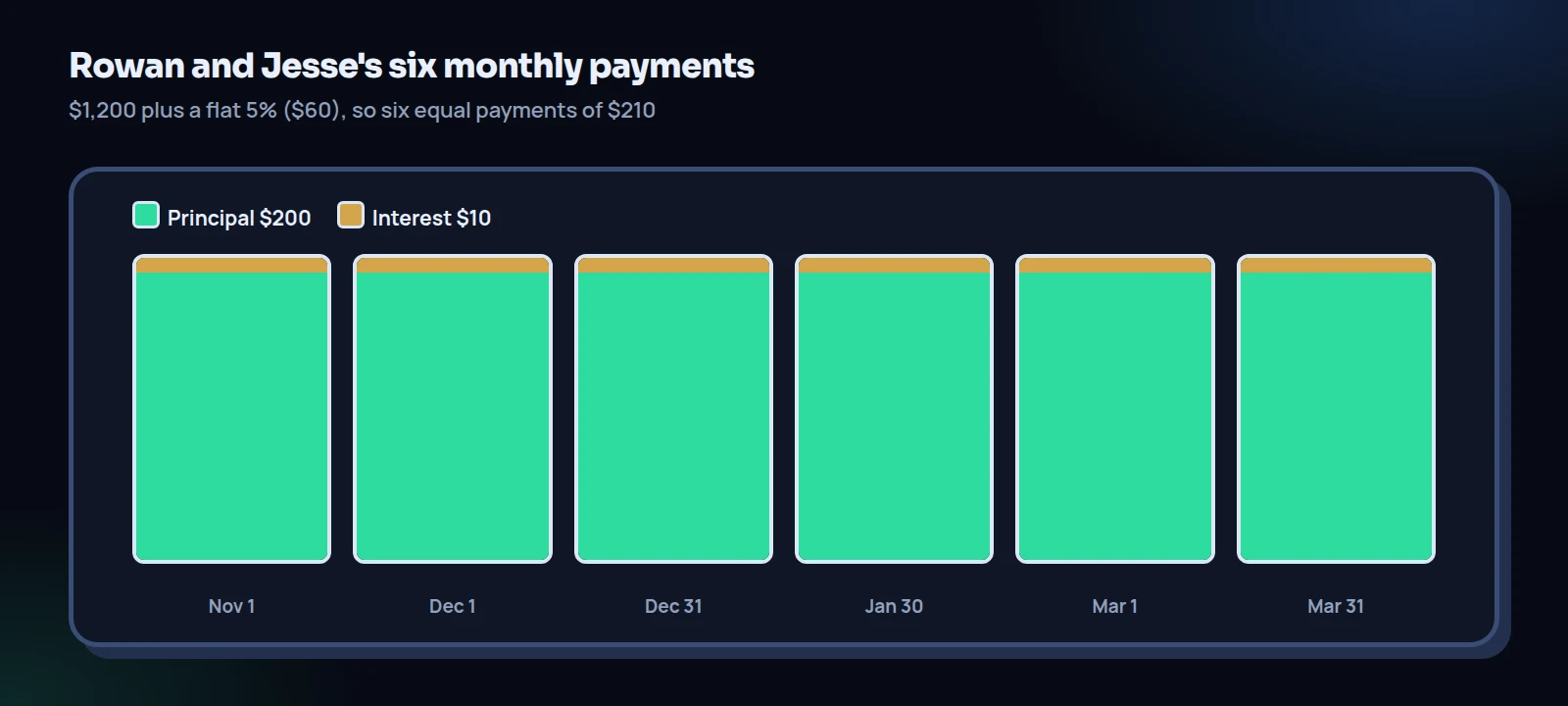
The web app lets you pick the first payment date, and “every month” keeps that day of the month (a 31st becomes the last day in shorter months). The Android app works differently: the schedule starts on the day you save it, and each installment is one interval later: 7 days for weekly, 14 for biweekly, 30 for monthly. That’s simple and predictable, but on Android “monthly” is not “the 1st of every month”. Months have 28 to 31 days, so a 30-day rhythm slowly drifts.
Worked example: Rowan saves the plan on Android on October 2
| Installment | Due (30-day steps) | Amount | Left after paying |
|---|---|---|---|
| 1 | Nov 1 | $210 | $1,050 |
| 2 | Dec 1 | $210 | $840 |
| 3 | Dec 31 | $210 | $630 |
| 4 | Jan 30 | $210 | $420 |
| 5 | Mar 1 | $210 | $210 |
| 6 | Mar 31 | $210 | $0 |
The first two land on the 1st; after that, the dates walk backwards. If Jesse gets paid on the 1st, the December 31 and January 30 payments arrive a day or two before payday.
Set up in the web app with a first payment of Nov 1, the same plan would fall on the 1st of every month through April 1. On Android there are two easy fixes. Agree that “due” means “by the next payday” and write that in the notes. Or choose biweekly if the borrower is paid every two weeks; a 14-day rhythm matches a biweekly paycheck exactly. What we wouldn’t do is ignore it and then mark a payment late because the calendar shifted.
Watch out
The schedule can’t be added or changed after both of you have signed, because signing locks the terms. If you forget, the web app tells you so on the agreement page. Add the schedule first, then sign.
Tracking payments against the plan
In the web app, the agreement page shows the schedule with a status for each payment: Paid, Part paid, Next due, Overdue or Upcoming. You don’t tick installments off one by one. Record each payment on the agreement as usual, and payments count toward installments in order. If Jesse pays $250 in November, installment 1 shows as paid and the extra $40 counts toward December’s. For shared agreements, reminders go out to both of you for the next unpaid installment (“installment 2 of 6”), in each person’s local morning.
On Android, open the agreement and choose View Installment Schedule. The Installment Schedule screen lists each payment with its due date and a status: pending, paid, partial or overdue, plus a progress bar for the whole plan. When Jesse pays installment 1 in full, tap Mark as paid on it. That marks the installment paid and adds $210 to the agreement’s paid amount, so the balance drops everywhere, including in the web app.
Partial payments need a different route on Android. If Jesse can only send $150 one month, record it with Record Payment on the agreement itself, with the date and method, and add a note about when the other $60 will follow. Don’t tap Mark as paid for a partial amount: it always counts the full installment. In the web app, that $150 simply shows as Part paid until the rest arrives.
Tip
Agree in the worksheet what happens to extra money. Our default: extra comes off the last payments, so the plan ends earlier and the regular amount stays the same. It’s easy to explain and easy to check.
Changing a plan that isn’t working
Life changes. If Jesse loses shifts in January, the worst outcome is silence and a string of overdue marks. The better one is a short conversation and a written update. Agree the new amount or dates together, then record the change clearly: add a dated line to the agreement notes (“Jan 15: agreed to pay $105 on Jan 30 and Feb 14 instead of $210 on Jan 30”) and record the payments as they come in.
Signed shared agreements lock the amount, currency, interest and due date, which protects both of you from silent edits. If the change is big, it’s cleaner to settle up what’s been paid and set up a new plan for the rest, signed again. Our guide to restarting repayments after a missed payment has wording for that conversation.
Interest and taxes, briefly
Most installment plans between friends carry no interest, and we’d skip it under a few hundred dollars. If you do add some, remember the IOUEZ field is a flat percentage, not an annual rate; our comparison of simple interest and a flat fee shows how the two differ over time.
On the tax side: interest you receive is generally taxable income, according to the IRS. For interest-free or low-interest loans between individuals, the IRS’s below-market loan rules generally don’t apply on any day the total outstanding between the two of you is $10,000 or less, as long as the money isn’t used to buy income-producing assets. Above that, the IRS’s monthly Applicable Federal Rates become relevant, and a tax professional is worth a call.
The message that confirms the plan
Once the plan is saved, send one short message that repeats it. It costs ten seconds and removes any doubt about what was agreed.
Message: confirming the installment plan
Hi Jesse! The laptop plan is in IOUEZ now: $1,200 plus 5%, so six payments of $210, every 30 days starting Nov 1 (last one Mar 31). Can you sign it when you get a sec? And if a month looks tight, just tell me before the date and we’ll move it. No drama.
(If no signature after two days) Hey, just checking the laptop plan reached you. It should be in your agreements waiting for a signature. Want me to resend it?
That’s the whole job: agree, enter, confirm, track. When you set up an installment plan this way, the app reminds, records and keeps score, and you get to stay friends. For the bigger picture on choosing amounts and lengths, see installment plans for personal loans, explained, and our core guide on how to lend money to a friend.
Frequently asked questions
Can I set up an installment plan in the web app?
Yes. Open the agreement and choose Set up installments: 2 to 120 payments, weekly, every two weeks or monthly, starting on the date you pick. Do it before both of you sign, because signing locks the terms. Plans sync, so the same schedule shows on Android.
Is the installment plan feature free?
It depends on your plan. Check the pricing page for what’s included in each plan today.
What frequencies can I choose?
Weekly, every two weeks or monthly. In the web app, monthly keeps the same day of the month; on Android, payments are 7, 14 or 30 days apart from the day you save the plan.
Can the payments be different amounts?
The app splits the total into equal payments. For uneven amounts, keep the plan simple in the app and spell out the exact amounts and dates in the notes.
What happens when I tap Mark as paid?
That installment is marked paid in full and its amount is added to the agreement’s paid total, so the remaining balance updates on every device.
Can I set up an installment plan if I’m the borrower?
Yes. Create the agreement as the borrower (I owe someone on Android) and build the same schedule before either of you signs. Proposing the plan yourself, with dates that match your paydays, is often the most reassuring thing a borrower can do for a lender.
Do reminders go out before each installment?
Yes, for shared agreements. Both of you are reminded about the next unpaid installment, such as “installment 2 of 6”, in your own local morning.
Sources
- Internal Revenue Service, Topic no. 403, Interest received, on interest generally being taxable income.
- Internal Revenue Service, Publication 550, Investment Income and Expenses, on below-market loans and the $10,000 exception for gift loans between individuals.
- Internal Revenue Service, Applicable Federal Rates (AFRs) rulings, the minimum rates the IRS publishes each month.