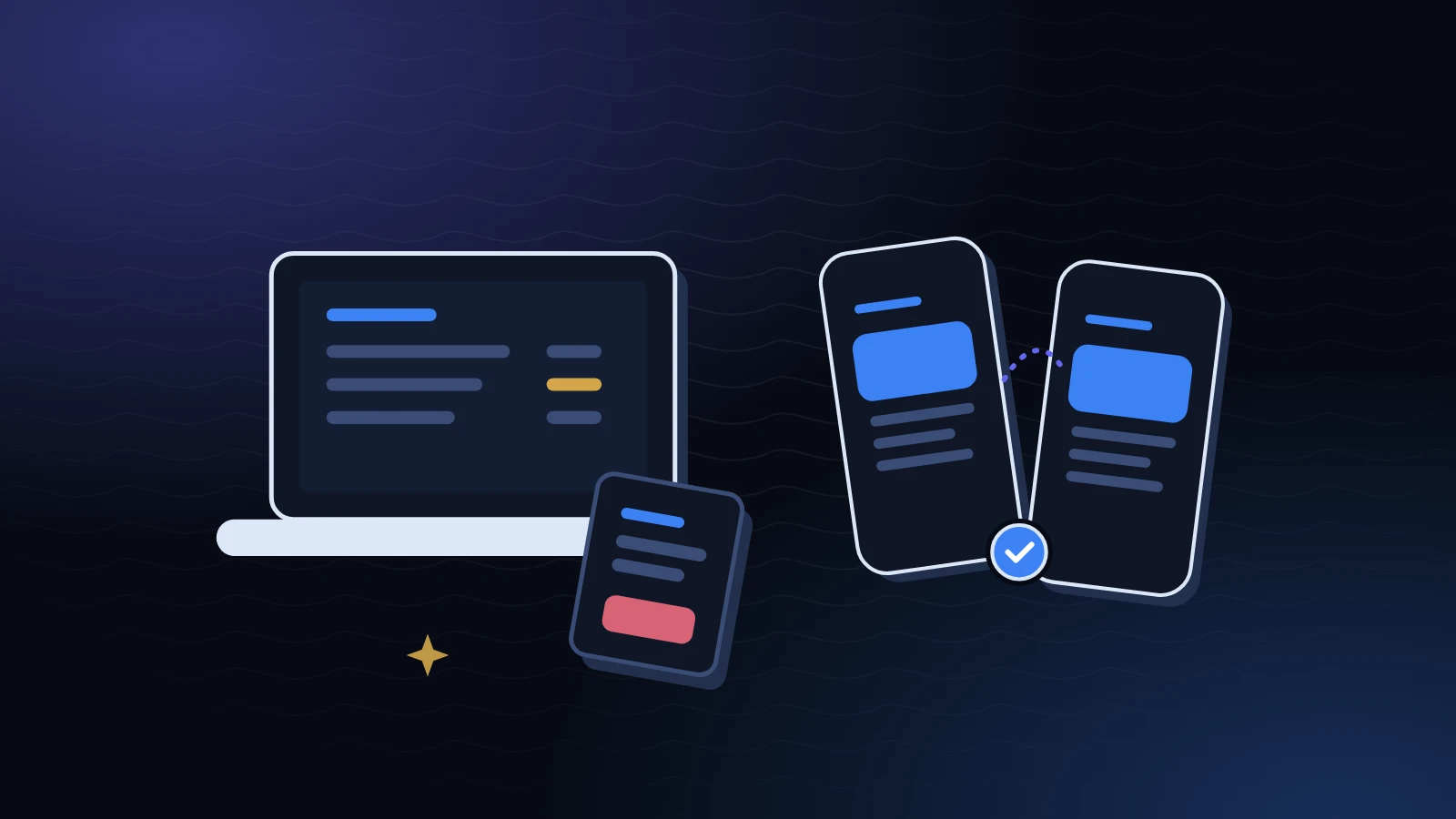
Taylor tracks money on a phone during the week and on a laptop on Sunday nights, when the budget gets done. Drew, who borrowed $900 from Taylor, only ever uses a browser at work. Both see the same balance, because the IOUEZ web app and the Android app are two doors into one account. Below are the questions people actually ask about using them together, each answered straight away.
Quick answer
Use one account for both. Agreements, contacts, signatures and payments sync between the IOUEZ web app and the Android app. Record payments on your phone when they happen, and review and write longer notes in the browser. Installment plans, groups and data exports work in both.
Do I need a separate account for the IOUEZ web app?
No, one account covers both. Sign in with the same email and password, or the same Google account, and you’ll find the same agreements, contacts and payment history on each.
The one thing to watch is how you first signed up. If you created your account on Android with “Continue with Google”, use Continue with Google on the web too, not the email form. Picking a different method can look like your data vanished when really you’re in a second, empty account. If that happens, sign out and sign back in the original way.
How do I open the IOUEZ web app?
Go to the IOUEZ web app in any up-to-date browser on a computer, tablet or phone. If you’re signed out, you’ll see the welcome page; choose Log in. Once you’re in, the address takes you straight to your dashboard.
The Android app comes from the download page. There isn’t a separate iPhone app at the moment, so iPhone users can open the IOUEZ web app in Safari or another browser and get the same account.
What exactly syncs between the two?
Your profile, contacts, agreements, signatures and payments all sync between devices. The web app’s Settings page puts it plainly: your profile is shared with the Android app, and changes sync to every device. Change your default currency on the laptop and new agreements on your phone start with that currency too.
Shared agreements also sync with the other person. When Drew records a $150 payment in the browser at lunch, Taylor’s phone shows $750 remaining shortly after, with a note of who recorded it.
How fast does a change show up on my other device?
Usually within moments when both devices are online. The web app listens for changes live, so an open dashboard updates without a refresh. The Android app saves each change on the phone first and then uploads it in the background, which means it keeps working on a train with no signal and catches up once you’re back online.
Here’s what that looked like for Taylor. On Friday night, at a concert with no signal, Drew handed over $100 in cash. Taylor recorded it on the phone right there: amount, date, method cash, and “paid at the venue” in the notes. The phone kept it. When Taylor got home and the phone joined the Wi-Fi, the payment uploaded, and Drew’s browser showed it the next morning, with $650 left to pay.
If something looks out of date, check the obvious things first: is the phone online, and is it signed in to the same account? Opening the app again usually prompts a fresh sync.
What can each one do that the other can’t?
Most everyday tasks work in both, including installment plans, groups and exports. The differences today are mostly about notifications, witness details and the exact file formats. Here’s the honest side by side.
| Task | IOUEZ web app | Android app |
|---|---|---|
| Create and sign agreements | Yes | Yes |
| Record payments | Yes, with method and reference | Yes |
| Request signature or payment | Yes, from the “Remind them” card | Yes, send a notification from the agreement |
| Installment schedules | Weekly, every two weeks or monthly, set up on the agreement page before signing | Weekly, every two weeks or monthly |
| Groups and bill splitting | Yes, under Groups | Yes, in the Groups tab |
| Save a copy | Print / PDF per agreement, CSV or Excel from Settings | CSV and PDF export, JSON backup |
| Witness details | Write them in Notes / terms | “Add Witness” on the form |
| Alerts | Browser notifications and Inbox | Phone notifications |
| Email preferences | Three switches in Settings → Emails | Follows the same account settings |
We marked the web column because it’s where most people should start reviewing things: a bigger screen makes it easier to read terms carefully before signing. For everything that happens away from a desk, the phone wins.
Will an installment plan I made on Android show up in the browser?
Yes. Installment plans sync like everything else, so a schedule built on Android appears on the agreement page in the IOUEZ web app, and one built in the browser appears on the phone. Each installment shows its due date, amount and a status: Paid, Part paid, Next due, Overdue or Upcoming.
In the web app, open the agreement and use Set up installments: choose 2 to 120 payments, weekly, every two weeks or monthly, and the first payment date, and you’ll see a preview of the schedule before you save it. Do it before both of you sign. Once both signatures are in, the terms lock, including the schedule. Whether you can create installment plans depends on your plan. We walk through the whole thing in setting up an installment plan.
Tip
Payments count toward installments in order, wherever you record them. If Drew pays $200 in the browser against a $150 installment, the extra $50 carries forward to the next one, and Taylor’s phone shows the same schedule. Compare the remaining balance first if the two screens ever seem to disagree.
Where do notifications show up?
On Android, as normal phone notifications. In the browser, only if you switch them on: open Settings, find the Notifications card and choose Enable notifications, then allow it when your browser asks. That setting is per browser, so your work laptop and home laptop are separate. Everything also lands in the web app’s Inbox, with an unread count in the menu, so you can catch up even if alerts were off.
If your browser blocked the request, IOUEZ will tell you, and you’ll need to allow notifications in the browser’s site settings. Google’s help pages for Chrome and Android (linked in Sources) show exactly where those switches are.
Email is separate again. Settings → Emails has switches for Payment reminders, a Monday Weekly summary, and News and tips. They apply to your account, wherever you read your email.
Can my friend sign on the web while I sign on my phone?
Yes, and that’s the normal way to do it. Each person signs from their own account on whatever device they have. Drew signed the $900 agreement with a trackpad at a desk; Taylor signed with a thumb on the bus. Both signatures appear in the same Signatures card with names and times, and once both are in, the amount, currency, interest and due date lock on every device.
The step-by-step version, including what to check before you sign, is in how to create and sign your first agreement online.
Is it safe to use the IOUEZ web app on a shared computer?
It can be, if you sign out when you’re done. On a library or work computer, don’t let the browser save your password, and use Sign out (in the menu or in Settings) before you walk away. When your account is used on a new device, IOUEZ can email you a new sign-in alert, which is a good early warning if someone else got in.
Watch out
Browser notifications show the content of the alert, such as “Drew recorded a payment”. On a shared or work computer, think twice before enabling them, or turn them off again in Settings when you leave.
On your own phone, the opposite applies: stay signed in, but protect the phone itself with a screen lock, because anyone holding an unlocked phone can open any app on it. Keep the phone’s software and the IOUEZ app updated, too.
For the bigger picture on passwords, Google sign-in and spotting fake login emails, see our account security checklist.
Why do my totals show several currencies?
Because IOUEZ keeps each currency separate instead of converting them. If Taylor has $900 out with Drew and a loan in euros with a cousin, the dashboard shows a net balance for one currency at a time, with small currency buttons to switch between them. The same totals appear on both devices.
That’s deliberate. An exchange rate changes daily, and a converted “total” would quietly shift even though nobody paid anything. If you lend across borders, agree in advance which currency the debt is in; our USD-first guide to lending in different currencies covers how to pick the rate and who carries the risk.
Will I get the same alert twice if I use both?
You might, and that’s by design. Alerts go to your account, so if you’ve allowed notifications on your phone and in a browser, both can light up for the same event. Most people keep phone notifications on and leave browser alerts off, using the web Inbox to catch up instead. Pick whichever pattern you’ll actually notice. If you change phones, sign in on the new one and allow notifications again there.
Can two people share one login?
Please don’t. A signature only means something if it came from the person whose name is on it, and that depends on each person signing from their own account. If a couple or two roommates share one login, every agreement between them is effectively signed by one person twice.
Separate accounts cost nothing extra to create, and they’re what make the sync between devices worth having: each person gets their own view (I owe, or owed to me) of the same shared agreement, their own reminders, and their own history. For household bills split between several people, our playbook on running trips, roommates and events in IOUEZ shows a workable setup.
Which one should I use for what?
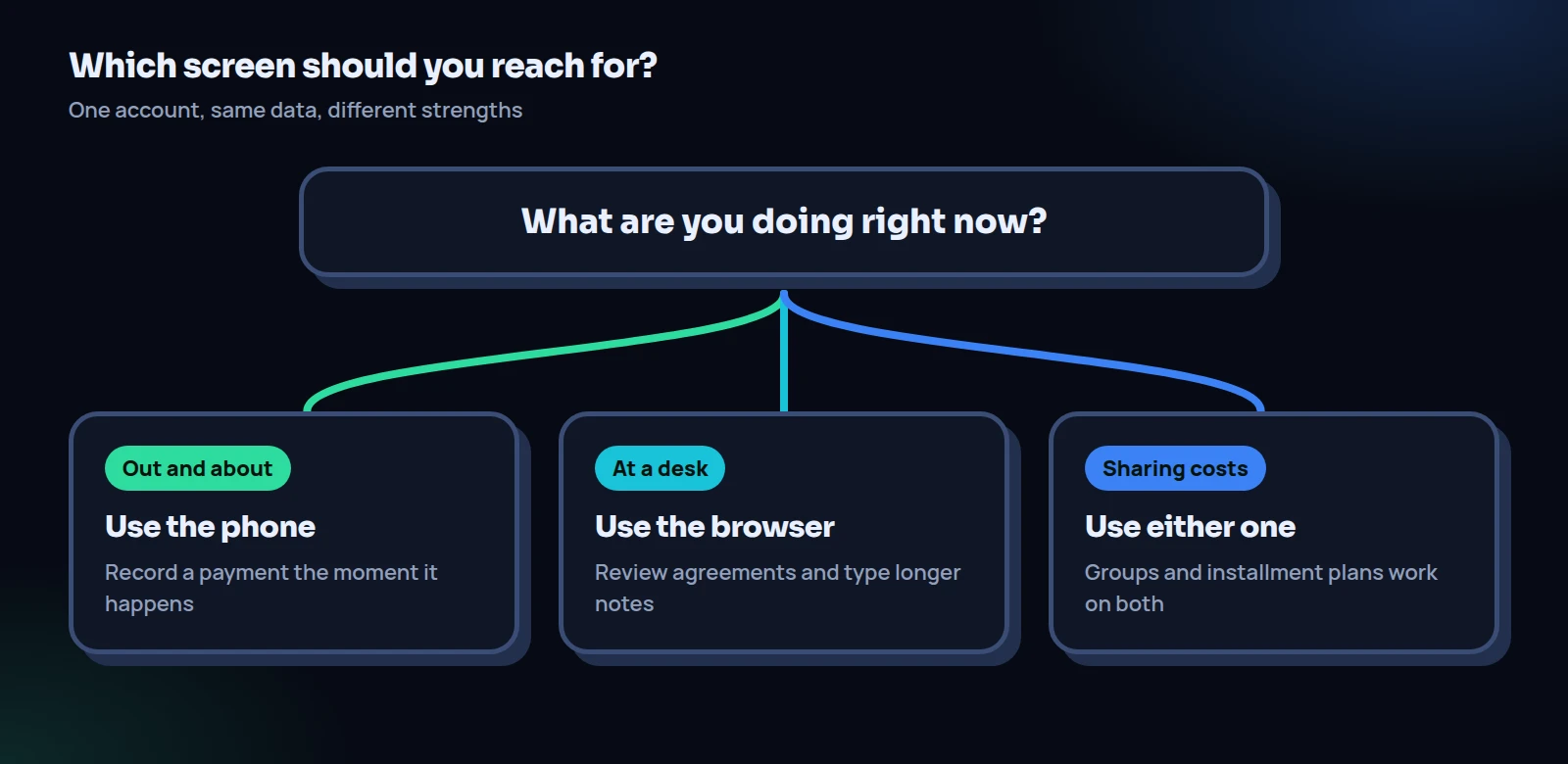
Our rule of thumb: phone for moments, browser for decisions. Record a payment the minute cash changes hands, because that’s when you have the details. Do the careful work, like reading terms, writing notes, reviewing who owes what and saving a PDF copy, where you have a keyboard and a large screen.
Phone for moments, browser for decisions. The record is the same either way.
A typical week for Taylor looks like this. Monday to Friday, the phone does the small stuff: a payment recorded in the parking lot, a quick look at who’s overdue before lunch with a friend. Sunday night, the laptop comes out. Taylor opens the IOUEZ web app, filters Agreements by Overdue and Pending signature, reads anything new in the Inbox, and saves a PDF of any agreement that was signed that week.
If you only ever want one, either works. People who lend to friends occasionally often live happily in the browser alone. People recording lots of small payments on the go tend to want the phone in their pocket.
What if something looks wrong on one device?
Almost always, it is one of two things: you are signed in to a different account, or the item was removed somewhere else. Here are the two cases people run into.
An agreement shows “Agreement not found”
It means that agreement isn’t available to the account you’re signed in with. Either it was deleted (possibly by the other person or on another of your devices, and the page will say so), or it was never shared with you. Check you’re in the right account first. If you are, ask the other person whether they created it as a private agreement; if so, they can link you as a contact and create it again as a shared one.
The phone app was uninstalled
Uninstalling the Android app doesn’t delete your account. Everything that synced is still there when you sign in again or open the IOUEZ web app. Deleting your account is a separate, deliberate step in Settings, and it asks you to confirm and sign in again first. Shared agreements stay available to the other person as a record.
Already on Android? Open the IOUEZ web app on your laptop, sign in the same way you did on your phone, and look at your dashboard. It should match, number for number.
Open the web appFrequently asked questions
Is the IOUEZ web app free?
You can create an account and use the core features for free. Paid plans add more; see the pricing page for what’s included today.
Is there an iPhone app?
Not at the moment. iPhone users can use the IOUEZ web app in the browser with the same account.
Does the web app work offline?
The web app needs a connection. The Android app saves changes on the phone and uploads them when you’re back online.
Why does my friend see “Debts” when I see “Agreements”?
The Android app labels its tabs Home, Debts, Groups, People, Analytics and Settings, while the web app uses Dashboard, Agreements, Groups, Contacts, Inbox and Settings. Same data, different names.
Can I be signed in on my phone and laptop at the same time?
Yes. You can stay signed in on both, and changes you make on one appear on the other. If you get a new sign-in alert email for a device you don’t recognize, change your password straight away.
Can I sign in with Google on both?
Yes. Use the same sign-in method on each device so you land in the same account.
Sources
- Google Chrome Help, Use notifications to get alerts, how to allow or block site notifications in Chrome.
- Android Help, Control notifications on Android, how to manage app notifications on your phone.
- Cybersecurity and Infrastructure Security Agency, Use Strong Passwords, guidance on long, random and unique passwords and password managers.