Sky got an email on a Tuesday morning: a new sign-in to their account, from a laptop they didn’t own. It turned out to be their own new work laptop, set up the day before. Relief. But it made Sky ask a fair question: if it hadn’t been them, would they have known what to do? This checklist covers how to secure your IOUEZ account, using the sign-in options the app really has and official advice from US security agencies, item by item, with the reason each one matters.
Watch out
Your account holds signed agreements, payment history and your contacts’ names, emails and phone numbers. That’s not a bank account, but it’s personal, and it’s the kind of record you want to be able to trust if a disagreement ever comes up. A few minutes now is worth it.
What IOUEZ already does on its side
Before your part, a quick look at what’s built in, so you know where the gaps are. Shared agreements can only be read by the two people in them. Once both people sign, the amount, currency, interest and due date lock, so nobody (including someone who got into one account) can quietly rewrite the core terms. Deleting an account asks you to sign in again first. New devices trigger a sign-in alert email. And the IOUEZ website’s security page notes that traffic travels over encrypted HTTPS connections.
What IOUEZ can’t do is choose your password, protect your email inbox or stop you from typing your details into a fake page. That’s the part this checklist covers. To secure your IOUEZ account properly, think of it as three layers: the password (or Google sign-in), the email behind it, and the devices you use.
1. Use a long password you don’t use anywhere else
When you sign up with email, IOUEZ asks for a password of at least 6 characters. Treat that as the floor, not the goal. The Cybersecurity and Infrastructure Security Agency (CISA) recommends passwords that are long (at least 16 characters), random, and unique to each account. A passphrase of five to seven unrelated words works well and is easier to type than a jumble of symbols.
Why it matters: the most common way into an account isn’t clever hacking. It’s a password reused from another site that leaked. If your IOUEZ password is unique, a breach somewhere else can’t open it.
To change it in the web app, open Settings and use the Change password card: your current password, then the new one twice. CISA suggests a password manager to generate and remember passwords like this, so you don’t have to.
2. Or sign in with Google, and lock that account down
IOUEZ also offers Continue with Google on the web and Android. If you use it, your Google account becomes the key to your IOUEZ account, so the way to secure your IOUEZ account is to secure that Google account properly.
IOUEZ doesn’t have its own two-step verification yet. Google does. Turning on Google’s 2-Step Verification means someone with your Google password still can’t sign in without a second step, like a prompt on your phone or a security key. CISA recommends turning on multifactor authentication on every account that offers it, especially email and financial accounts.
Why it matters: it closes the “stolen password” door almost completely. Our honest view: if you want a second factor protecting your IOUEZ account today, Google sign-in with 2-Step Verification is how you get it.
Tip
Pick one sign-in method and stick to it. If you signed up with Google, always use Continue with Google. Using the email form instead can create the impression your data has vanished, and tempts people into making a second, weaker account.
3. Verify your email address
After you sign up, the dashboard shows a Verify your email notice until you click the link in your inbox. Do it on day one.
Why it matters: your email is how you get back in. The Forgot password? link sends a reset link to that address, and new sign-in alerts go there too. If the address is mistyped or unverified, you lose both your recovery route and your early warning system.
4. Read new sign-in alerts, every time
When your account is used on a device it hasn’t seen before, IOUEZ can email you a new sign-in alert, like the one Sky got. Most of the time, it’ll be you: a new phone, a new browser, a work laptop.
Why it matters: if it isn’t you, that email is your earliest chance to act, often before anything has changed. Don’t skim it. Check the device and time, and if they don’t match something you did, jump to the “if someone got in” steps below.
Make sure those alerts can reach you. Add the IOUEZ sender to your contacts or safe senders list, and check your spam folder once after signing up. An alert that lands in spam is an alert you never read, and the whole point is to secure your IOUEZ account early, while the only thing a stranger has done is sign in.
5. Learn to spot a fake login email
Phishing messages pretend to be from a company you trust and try to get you to click a link and type your password. The Federal Trade Commission lists common warning signs: messages claiming suspicious activity or a problem with your account, asking you to confirm personal information, or pushing you to click a link to pay. The FTC also notes that legitimate companies won’t email or text you a link to update your payment information.
The simplest defense: don’t sign in from links. If an email says something needs your attention in IOUEZ, open the app yourself or type the web address you already know, then look. Real alerts will be waiting in your Inbox.
Why it matters: you can secure your IOUEZ account with a perfect password and still lose it by typing that password into a fake page. Since IOUEZ handles money between people, a fake “payment request” email is an obvious lure, so a habit of checking inside the app protects you every time.
6. Lock your phone and keep things updated
Stay signed in on your own phone, that’s what makes the app convenient. Then protect the phone itself with a screen lock, so an unlocked phone left on a café table can’t be used to open your agreements. Keep the phone’s software and your apps up to date; CISA recommends turning on automatic updates so security fixes arrive without you having to remember.
Why it matters: most real-world account misuse is physical and boring. A borrowed phone. A laptop left open. A screen lock is the cheapest security you’ll ever buy.
7. Sign out on shared computers
On a library, hotel or work computer, use Sign out before you leave (it’s in the menu and in Settings), and don’t let the browser save your password. If you switched on browser notifications on that computer, turn them off too; notifications can show agreement details to whoever is sitting there next.
Why it matters: the next person at that keyboard doesn’t need your password if you’re still signed in.
8. Keep your own copy of important agreements
Security isn’t only about keeping people out. It’s also about not losing what matters. Save a PDF of every signed agreement worth keeping: the web app’s Print / PDF button produces a document with the terms, payments and both signatures. For a spreadsheet of everything, use Export your data in the web app’s Settings, or Export Data on Android. Our guide on exporting your loan records covers a simple routine.
Why it matters: if you ever lose access, or delete your account, you still have the record you signed.
9. Know how to leave cleanly
If you stop using IOUEZ, you can delete your account from Settings. For your protection, it asks you to confirm and to sign in again first. Deleting removes your profile, contacts and private agreements on every device; shared agreements stay available to the other person as their record, which is fair to them.
Why it matters: an old, forgotten account with a reused password is a risk you don’t need. Download your copies first, then delete.
Long password, second step on your email, and never sign in from a link. That’s most of it.
Three password myths, corrected
A lot of password advice is outdated. Here’s what the current official guidance actually says.
Myth: A short password full of symbols beats a long, simple one.
Fact: Length does the heavy lifting. NIST’s digital identity guidelines (SP 800-63B-4) require at least 15 characters for passwords used on their own and tell services not to impose other composition rules. CISA recommends at least 16.
Myth: You should change your password every 90 days.
Fact: NIST tells services not to require periodic password changes, but to force a change when there’s evidence of compromise. Change yours when something suggests it leaked, not on a calendar.
Myth: Password managers are riskier than remembering your passwords.
Fact: CISA calls a password manager one of the easiest ways to protect your accounts, because it makes long, unique passwords practical for every site.
If you think someone got into your account
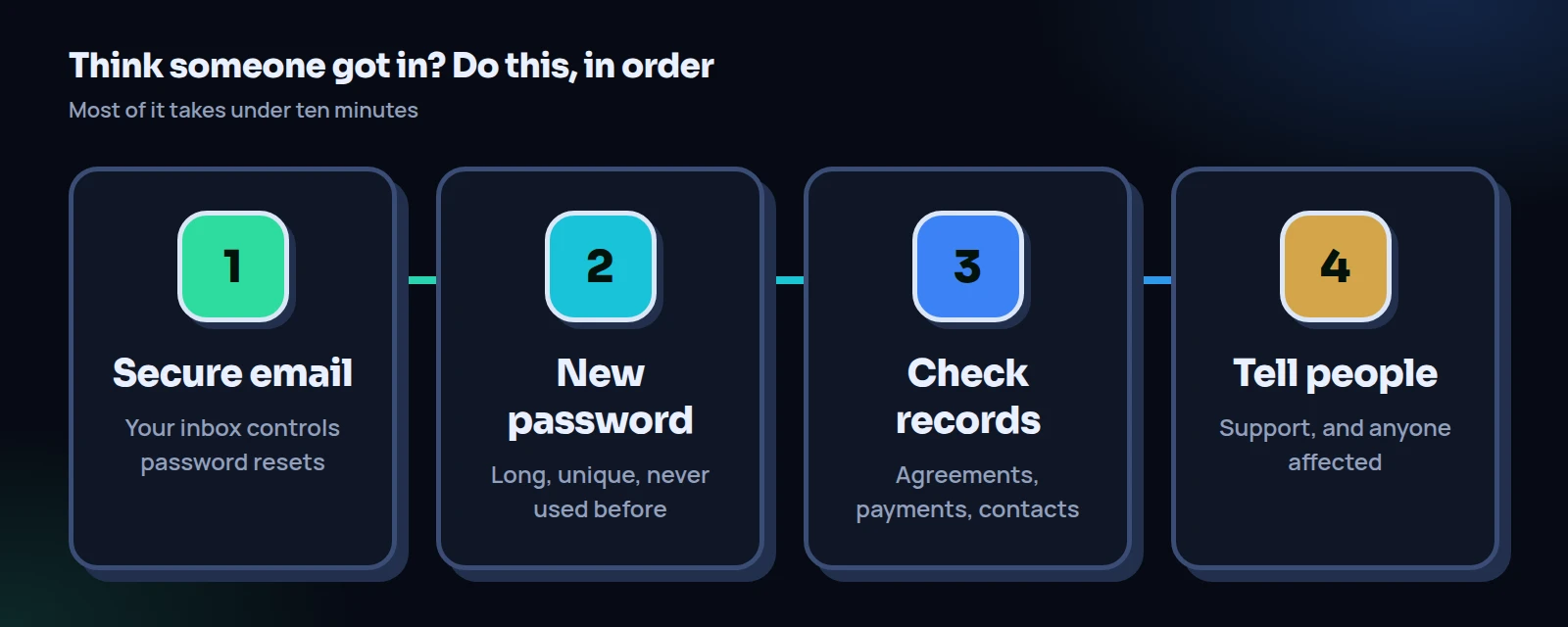
Move quickly, in this order. Each step closes a door the previous one leaves open.
Secure your email first
Your email controls password resets for IOUEZ and most other accounts. Change your email password, and turn on its two-step verification if it isn’t on already. If you use Google sign-in, this step is the same as securing your IOUEZ access.
Change your IOUEZ password
Use Change password in Settings, or Forgot password? on the login page if you can’t get in. Pick something long and new, never a variation of the old one.
Check your records
Look through Agreements, payments and Contacts for anything you didn’t do. Signed shared agreements lock their amount, currency, interest and due date, so the core terms can’t have been quietly edited, but check for new agreements, deleted payments or changed contact details.
Tell the people who need to know
Contact IOUEZ support through the help center or contact page, and let anyone you share agreements with know, so they ignore odd requests from your account. If you got there through a phishing message, report it to the FTC at ReportFraud.ftc.gov.
One more thing on step 3: if you find a payment you didn’t record, or an agreement you didn’t create, don’t delete it straight away. Take a screenshot first. If you need to explain what happened to support, or to the other person in that agreement, the screenshot shows exactly what you found.
Sky never needed these steps. But Sky did spend ten minutes that Tuesday on items 1 to 3, and now the next “new sign-in” email will be a two-second check instead of a scare. For more on how IOUEZ protects your data on its side, see the security page.
Checklist: secure your IOUEZ account in 10 minutes
- Password is 16+ characters, unique, and stored in a password manager.
- Or: you sign in with Google, and Google 2-Step Verification is on.
- Your email address is verified, and your email account has its own second step.
- You know what a new sign-in alert looks like, and you read every one.
- You open IOUEZ directly instead of signing in from email links.
- Your phone has a screen lock and automatic updates.
- You sign out on any computer that isn’t yours.
- Important signed agreements are saved as PDFs outside the app.
- You know where account deletion lives, and you’d download copies first.
Frequently asked questions
What’s the fastest way to secure your IOUEZ account?
Set a long, unique password (or use Google sign-in with 2-Step Verification), verify your email, and never sign in from an email link. That covers the most common risks.
Does IOUEZ have two-factor authentication?
Not its own yet. If you sign in with Google, you can protect that sign-in with Google’s 2-Step Verification.
Will IOUEZ ever ask for my password by email?
Don’t give your password to anyone who asks for it by email, text or phone. If a message asks you to sign in, open the app yourself instead of using the link.
I got a new sign-in alert I don’t recognize. What now?
Secure your email, change your IOUEZ password, check your agreements and contacts for changes, and contact support. The four steps above go in that order for a reason.
How do I keep my IOUEZ account safe on a shared family computer?
Use a separate browser profile for yourself, don’t save the password in a shared profile, and sign out when you finish.
If I delete my account, does the other person lose our agreement?
No. Shared agreements stay available to the other person as a record. Your profile, contacts and private agreements are deleted.
Sources
- Cybersecurity and Infrastructure Security Agency, Use Strong Passwords, on long, random, unique passwords and password managers.
- Cybersecurity and Infrastructure Security Agency, Secure Yourself & Your Family, the four core steps: strong passwords, multifactor authentication, recognizing phishing and updating software.
- National Institute of Standards and Technology, NIST Special Publication 800-63B, Digital Identity Guidelines: Authentication and Authenticator Management, on password length, composition rules and periodic changes.
- Federal Trade Commission, How To Recognize and Avoid Phishing Scams, on warning signs, multi-factor authentication and reporting.
- Google Account Help, Turn on 2-Step Verification, how to add a second step to a Google account.