Jordan had lent Riley $600 for a security deposit, and the only record was a thumbs-up emoji in a group chat. Two weeks later neither of them could remember whether the first $100 had been paid. If that sounds familiar, the IOUEZ app fixes it in about five minutes: one account, one contact, one signed agreement, and a balance you can both see. This playbook walks you through each step, including the small things that go wrong on day one.
Example
Here’s the setup we’ll follow. Jordan lends Riley $600 for a deposit, to be paid back by December 15. Riley already uses IOUEZ; Jordan is brand new. By the end of this guide, Jordan has an account, Riley is linked as a contact, the $600 agreement is signed by both, and Riley’s first $100 payment shows up on both screens.
Before you start: what you need
You need less than you think. An email address you can open, a password you don’t use anywhere else, and the name plus email or phone number of the person you’re dealing with. That’s it. No bank login, no card number, no ID upload. The IOUEZ app records what you agreed and what was paid; it doesn’t move the money itself, so you keep paying each other the way you already do (cash, bank transfer, Zelle, Venmo, whatever works).
You can start on either side. The web app runs in any modern browser at the IOUEZ web app, and the Android app is on the download page. One account works on both, and changes sync, so you can sign up on a laptop tonight and record a payment from your phone tomorrow. If you’re curious how the two fit together, we wrote a separate guide on using IOUEZ on Android and the web together.
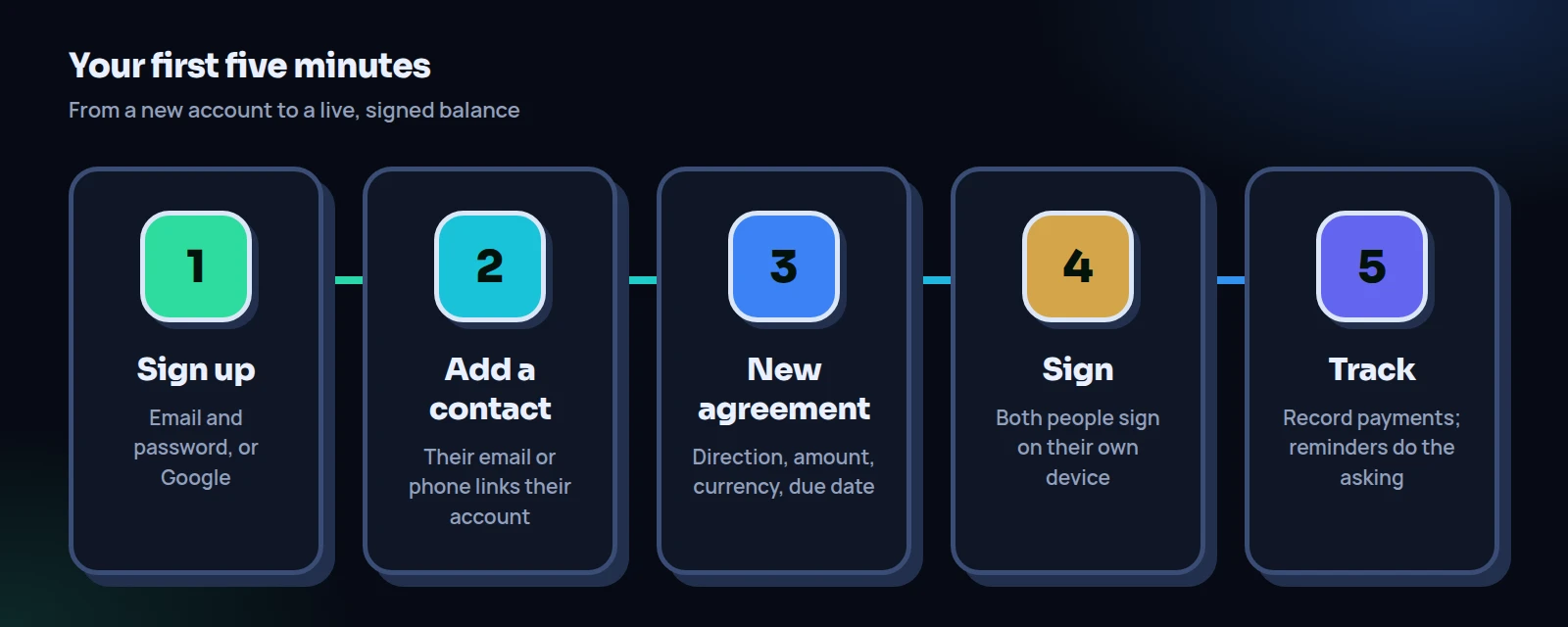
The five steps in the IOUEZ app
Each step below says what to tap, what to type and what tends to go wrong. Follow them in order the first time; after that, a new agreement takes well under a minute.
Create your account
On the web, open the web app and choose Create an account. You’ll see three fields: Full name, Email and Password (at least 6 characters), then the Create account button. Prefer not to make another password? Use Sign up with Google instead. On Android, open the app, swipe through the short welcome screens and tap the register option (you’ll link a contact in the next step); the form asks for your full name, email, an optional phone number and a password, and there’s a Google button there too.
What can go wrong: the verification email lands in spam. After you sign up, the dashboard shows a Verify your email notice until you click the link. Search your inbox for the sender name and move it out of spam, so later reminders don’t end up there either.
Add the other person as a contact
On the web, go to Contacts and choose Add contact (or tap Add contact under Quick actions on the dashboard). Type their Name, then their Email or Phone. For phone numbers, include the country code, for example +1 for the US. If that person already has an account, IOUEZ can find it, and the contact shows as Linked to IOUEZ. On Android the same thing lives under People.
What can go wrong: the contact doesn’t link because you typed a different email from the one they signed up with. Ask them which address they use for the app. Linking matters: an agreement with a linked contact is shared, so they see it and can sign it. An agreement with an unlinked contact stays private to you.
Create your first agreement
From the dashboard, tap I lent money or I borrowed money. Both open the New agreement form with the direction already set (They owe me or I owe them). Choose the contact, then fill in the Terms: Amount, Currency, a short Description (“Deposit for the Elm Street apartment”), a Category, an optional Due date, an optional Interest rate (%) and any Notes / terms. The form shows the Total due as you type. Tap Create agreement.
What can go wrong: skipping the due date. It’s optional, but automatic reminders for shared agreements are tied to it. No date, no nudges. Also note that the interest field is a flat percentage on the amount, not a yearly rate: 5% on $600 means $630 total, however long it takes.
Sign it, both of you
Open the agreement. In the Signatures card, tap Sign now next to your role (lender or borrower). Check the summary line, confirm your Full name of signer, draw your signature with a finger or mouse, tick I agree to the terms of this agreement. and tap Sign. The other person does the same from their own account. If they haven’t yet, the Remind them card has a Request signature button that sends them a notification.
What can go wrong: signing for the other person on your phone when they’re not with you. There is a Sign for them (in person) option, and it’s meant for exactly that: when you’re sitting together and they sign on your device. Don’t use it as a shortcut when they’re absent.
Track payments as they happen
When money changes hands, open the agreement and tap Record payment. Enter the amount, the date, the method (cash, bank transfer, mobile wallet, card or other) and an optional reference such as a transfer confirmation number. On a shared agreement, both of you see the payment and the new Remaining balance straight away.
What can go wrong: nobody records the payment because each person assumes the other will. Agree now that whoever sends the money records it, with the reference, the same day.
What Jordan and Riley’s screens look like afterwards
Back to our example. Jordan created the agreement with They owe me, chose Riley (already linked, so the form said it would be shared), typed $600, picked USD, set December 15 as the due date and wrote “Security deposit, Elm Street” in the description. No interest. In Notes / terms Jordan added one line: “Riley pays $100 on the 15th of each month; if a payment will be late, Riley messages Jordan first.”
Riley got a notification, opened the agreement, read the terms and signed. Once both signatures are in, the agreement shows a Signed by both label, and the amount, currency, interest and due date are locked, so neither person can quietly change them later. On July 15 Riley paid $100 by bank transfer and recorded it with the bank’s confirmation number. Jordan’s dashboard now says Riley owes $500, and so does Riley’s.
Tip
Write the payment plan in Notes / terms even if it feels obvious. “Six payments of $100 on the 15th” is the sentence you’ll both look for in four months, and it gets locked along with the signed record.
Getting around: where things live
In the browser, the IOUEZ app has a handful of main areas in its menu. Dashboard shows your net balance, what’s owed to you, what you owe, plus counts for pending signatures, overdue agreements, active agreements and contacts. Agreements lists every IOU, with filters for owed to me, I owe, pending signature, overdue and settled. Groups is for shared costs with several people, like a trip or a shared apartment (when groups are available). Contacts holds the people you deal with. Inbox collects notifications: new agreements shared with you, signatures, payments and reminders. Settings holds your profile, appearance, notifications, emails, data export and account options.
The Android app uses its own tab names: Home, Debts, Groups, People, Analytics and Settings. Same data, different labels. If a friend is on Android and you’re on a laptop, “Agreements” on your screen is “Debts” on theirs.
| Start on the web | Start on Android | |
|---|---|---|
| Best for | Typing longer notes, reviewing many agreements on a big screen | Recording payments the moment they happen |
| Signing | Draw with a mouse or trackpad | Draw with your finger |
| Installment schedules | Set up installments on the agreement page before you both sign | Create a weekly, every-two-weeks or monthly plan |
| Saving a copy | Print / PDF on each agreement, plus CSV or Excel from Settings | Export to CSV or PDF, plus a backup file |
| Notifications | Browser notifications you switch on in Settings | Phone push notifications |
Our honest advice: do the setup wherever you are right now, then install the other one later. Most people end up creating agreements on whichever device is in their hand and checking balances on the other.
Reminders: let the app do the asking
This is the part people like most about the IOUEZ app, because it removes the awkward text. For a shared agreement with a due date, IOUEZ sends a reminder the day before the due date and on the day itself. If the date passes and the balance is still open, the agreement is marked overdue and both of you get a notice. The person who owes also gets the reminder by email, unless they’ve switched that email off.
You control your own channels. In the web app, Settings → Notifications has an Enable notifications button for the browser you’re using. Settings → Emails has three switches: Payment reminders, Weekly summary (every Monday: what you’re owed, what you owe and what’s due) and News and tips. Essential emails, such as password resets, always arrive. On Android, reminders arrive as phone notifications, and the Settings screen has options for payment reminders and the time of day you get them.
You can also nudge someone yourself. On a shared agreement, the Remind them card offers Request signature when their signature is missing and, if you’re the lender, Request payment while a balance is open. For wording when you want to add a personal note, see how to remind someone to pay you back.
Watch out
Reminders only work for agreements that are shared and have a due date. If you made a private agreement with a contact who isn’t linked, nobody gets reminded but you. Link the contact first, then create the agreement, so it’s shared from the start.
Private or shared: pick on purpose
Every agreement in the IOUEZ app is one of two kinds, and the form tells you which before you save. A shared agreement is created when the contact is linked to their own account. They see it in their app, both of you can sign, both of you see every payment, and the signed terms lock. A private agreement is one only you can see. It’s still useful as a personal record, for example when you lend a neighbor $40 and just want to remember it, but the other person never sees or signs it.
For anything you’d be upset to lose, go shared. A record both people signed is far harder to argue with than your own note, which is also why we recommend it in our guide on how to lend money to a friend. It also tends to help if you ever need to show that money was a loan rather than a gift. The IRS, for instance, says that to deduct a bad debt you must show you intended to make a loan and not a gift at the time (see Sources).
Five small settings worth two minutes
None of these are required, but each one saves a headache later. Open Settings and look at the Profile card first.
- Default currency. If you mostly deal in dollars, leave it on USD. If you regularly send money to family abroad, you might pick their currency here instead. Every new agreement starts with this currency, and you can still change it per agreement.
- Phone. Adding your number (with country code) lets friends find and link you by phone, not only by email.
- Country. Optional, and handy if you deal across borders.
- Appearance. Dark is the default; there’s a light option for daytime reading.
- Change password. If you signed up with email, this card lets you swap in a stronger one. Our account security checklist covers what “strong” means today.
Day-one mistakes in the IOUEZ app
Most first-week problems are small and fixable. Here are the ones worth avoiding.
Creating the agreement before the contact is linked. The agreement then saves as private. The fix is to edit the contact, add the right email or phone so it links, and create the agreement again as shared. Delete the private draft so you don’t have two.
Using the description as the whole agreement. The description is a short label (140 characters). Put the actual plan in Notes / terms.
Forgetting that signed means locked. After both signatures, the amount, currency, interest and due date can’t be edited. That’s the point. If life changes and you both agree new terms, record the change clearly; our guide on changing the terms of an IOU shows a fair way to do it.
Waiting to record payments. A payment recorded three weeks late, without a reference, is how “I’m sure I paid you in August” starts. Record it the day it happens.
Checklist: your first session in the IOUEZ app
- Account created, and the verification email clicked.
- Default currency and phone number set in Settings.
- The other person added as a contact and showing as linked.
- First agreement created with an amount, currency and due date.
- The payment plan written in Notes / terms in one plain sentence.
- Both signatures in, and the “Signed by both” label showing.
- Notifications switched on for this browser or phone.
- You’ve agreed who records each payment, and that they add the reference.
Have a loan you’re tracking in a chat thread right now? Move it into the IOUEZ app tonight: one contact, one agreement, two signatures. It takes about as long as reading this sentence twice.
Create your free accountFrequently asked questions
Does the IOUEZ app send or receive the money?
No. IOUEZ records the agreement, the signatures and each payment. You pay each other the way you normally do, then record the payment so both balances update.
Does the other person need an account?
To see and sign a shared agreement on their own device, yes. Without an account, you can still keep a private record, or sign together in person using Sign for them (in person) while they’re physically with you.
Can I use the IOUEZ app on my phone and laptop at the same time?
Yes. One account works in the web app and the Android app, and agreements, contacts and payments sync between them.
What does it cost?
You can create an account for free. Paid plans add extra features; the current options are on the pricing page.
Can I change an agreement after signing?
Once both people have signed, the amount, currency, interest and due date are locked. The description, category and notes can still be edited. For a real change in terms, agree it together and record it clearly.
Where do I get help if I’m stuck?
The help center answers the common questions, and the Account card in Settings lists the support contact when the team has published one.
Sources
- Internal Revenue Service, Topic no. 453, Bad debt deduction, on showing that money was intended as a loan and not a gift.
- Cybersecurity and Infrastructure Security Agency, Use Strong Passwords, advice on long, random and unique passwords for each account.